
Any team working across multiple Oracle Fusion Cloud environments, DEV, TEST, UAT, PRE-PROD, will eventually run into the same problem: every pod looks identical. The URL might technically tell you where you are, but in the middle of a busy workday, a quick glance at the browser bar is not a reliable safeguard against executing something in the wrong environment.
Oracle provides a built-in mechanism to address this. The platform supports a persistent warning banner displayed at the top of every page, visible throughout navigation, that clearly identifies the environment a user is working in. It takes less than two minutes to configure and eliminates an entire category of preventable mistakes.
Why This Matters
The most straightforward use case is environment identification. Displaying “DEV”, “TEST”, or “UAT” so that users and consultants always know which pod they are on. Beyond that, the banner is useful for communicating the last refresh date after a clone from production. A message like “DEV1 – Last refresh: 05/02/2026” immediately tells a consultant how current the data is, which matters when troubleshooting or validating configurations. You can also use it to warn users ahead of a scheduled pod refresh so they can save their work, or to broadcast important operational announcements directly within the application.
Configuration: The FND_BANNER_MESSAGE Profile Option
The banner is controlled through the administrator profile option FND_BANNER_MESSAGE. To configure it, you need access to the Setup and Maintenance work area with a user that holds the Application Implementation Consultant or IT Security Manager role, or equivalent privileges to manage profile values.
From Setup and Maintenance, search for the task “Manage Administrator Profile Values.” On that page, search for the Profile Option Code FND_BANNER_MESSAGE. Scroll down to the Profile Values section and click the Add icon to create a new row. Set the Profile Level to Site, and in the Profile Value field, enter your message :
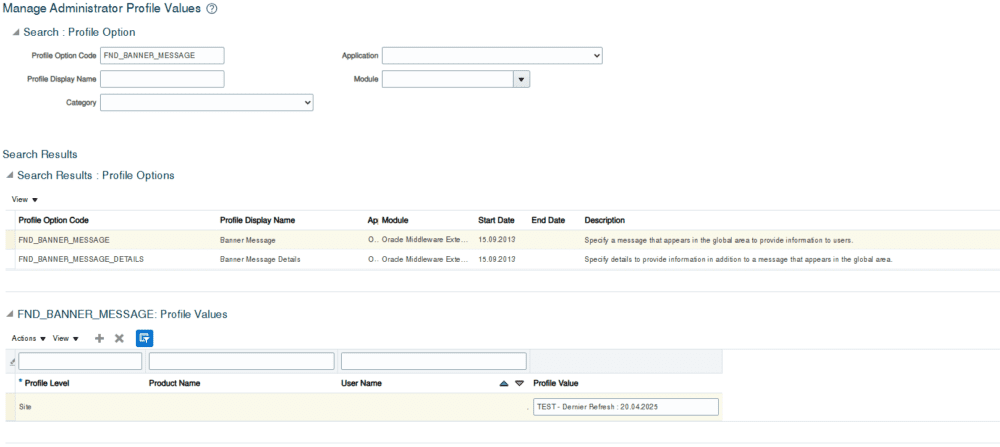
Click Save and Close, then sign out and sign back in. The banner will now appear in the global header on every page for all users in that environment.
Constraints Worth Knowing
The message field supports up to 1,000 characters, but only the first 77 characters are displayed directly in the header bar. If your message exceeds that length, users can see the full text by hovering over the banner. The banner does not support translation, it renders in the language you typed it in, regardless of the user’s session language preference. Oracle may also override your custom banner during patching or maintenance windows, so do not rely on it as a sole communication channel during those periods. To remove the banner, navigate back to the same profile option and delete the row.
The standard Oracle role you need to update this task is the Application Implementation Consultant (role code ASM_APPLICATION_IMPLEMENTATION_CONSULTANT_JOB)
Make It Part of Your Standard Operating Procedure
If you manage non-production Oracle Fusion Cloud environments, this should be one of the first things you configure after every pod provisioning or refresh. It is a trivial setup that pays for itself immediately by reducing confusion across teams that juggle multiple environments daily.
Reference: Oracle Documentation – Set a Banner Message in the Global Header : https://docs.oracle.com/en/cloud/saas/financials/26b/fafcf/set-a-banner-message-in-the-global-header.html