
Any organization running Oracle Fusion Cloud will eventually face the same question: who is logging into our environment, when are they connecting, and from which IP address?
Whether the driver is a formal security audit, a compliance requirement, or an investigation into unauthorized access, the ability to answer those questions quickly and accurately is non-negotiable.
The good news is that Oracle Fusion Cloud already captures this data. The challenge is surfacing it in a way that is meaningful and repeatable. That is exactly what we are going to build here: a custom User Login report using BI Publisher and the FND_SESSIONS / FND_SESSION_ATTRIBUTES audit tables.
What You Need Before Getting Started
Before diving in, make sure the following is in place. Your user account needs the BI Administrator role assigned. You need access to Oracle Analytics, which is the BI Publisher interface within Fusion Cloud. (https://YOUR_POD.fa.ocs.oraclecloud.com/analytics/) You also need a target folder in the BI catalog where you plan to store your Data Model and Report.
Step 1: Access BI Publisher Administration
Log in to the Analytics interface using the standard URL pattern for your environment. (https://YOUR_POD.fa.ocs.oraclecloud.com/analytics/)
Once logged in, click on your user portrait (top-right corner) and select Administration.
Note: If you do not see the “Administration” option, it means your user does not have the BI Administrator role. Contact your security administrator to have it assigned.
From there, the process involves building a Data Model that queries the FND_SESSIONS and FND_SESSION_ATTRIBUTES tables, which are the underlying audit tables Oracle uses to track session-level activity. FND_SESSION_ATTRIBUTES extends that record with contextual details, including the IP address from which the session originated.
Once the Data Model is in place, you wrap it in a BI Publisher report layout that your security team or auditors can consume on demand or on a schedule.
Step 2: Create the AuditViewDB Data Source
From the Administration page, navigate to:
Publisher → Manage Publisher (Manage Publisher data sources, scheduler configuration, delivery destinations, and runtime properties.)
Then go to:
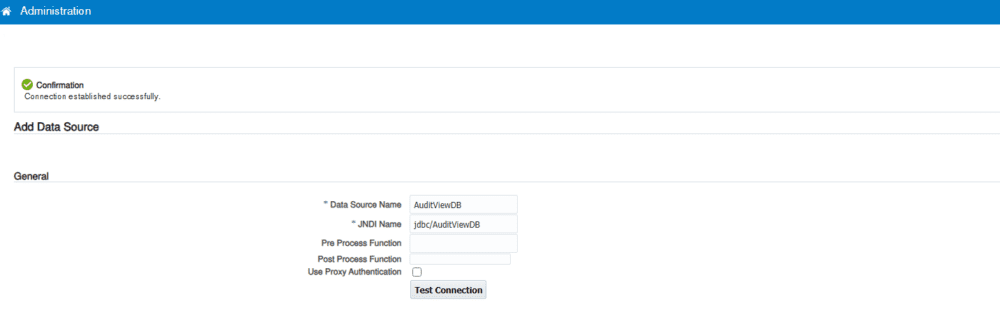
Data Sources → JNDI Connection → Add Data Source
Fill in the following fields:
- Data Source Name:
AuditViewDB - JNDI Name:
jdbc/AuditViewDB
Click Test Connection to verify that the JNDI connection is working properly.
In the Security panel, you can restrict which roles are allowed to execute queries against this data source. This is not mandatory if you already have security controls applied at the report level, but it is a good practice for defense in depth.
Click Apply to save the data source configuration.
Step 3: Create the Data Model
Navigate back to the Catalog, go to the folder where you want to store your report, and create a new Data Model.
Define Parameters
Before writing the query, create two parameters in your Data Model:
| Parameter Name | Type | Default Value | Description |
|---|---|---|---|
p_username | String | All | Filter by a specific username, or All to show everyone |
p_days | Integer | 7 | Number of days to look back from today |
Write the SQL Query
Set the Data Source to AuditViewDB and use the following SQL query:
SELECT
    fs.SESSION_ID,
    fs.USER_NAME,
    fs.FIRST_CONNECT,
    fs.LAST_CONNECT,
    fsa.NAMESPACE,
    fsa.ATTRIBUTE_NAME,
    fsa.ATTRIBUTE_VALUE
FROM
    FND_SESSIONS fs
    JOIN FND_SESSION_ATTRIBUTES fsa ON fsa.SESSION_ID = fs.SESSION_ID
WHERE
    (fs.USER_NAME IN (:p_username) OR :p_username = 'All')
    AND fs.FIRST_CONNECT > SYSDATE - :p_days
    AND fsa.ATTRIBUTE_NAME = 'FND_USER_IP_ADDR'
ORDER BY
    fs.FIRST_CONNECT DESC
Key Notes on the Query
FND_SESSIONSstores session-level information such as the username and connection timestamps. https://docs.oracle.com/en/cloud/saas/applications-common/25d/oedma/fndsessions-18608.htmlFND_SESSION_ATTRIBUTESstores additional metadata per session, including the IP address under the attribute nameFND_USER_IP_ADDR. https://docs.oracle.com/en/cloud/saas/applications-common/25c/oedma/fndsessionattributes-21328.html- The parameter logic
OR :p_username = 'All'allows the user to either filter by a specific username or retrieve all users by passingAll.
Step 4: Create the Report
Once your Data Model is saved and validated, create a new Report based on it.
The report will display the following columns:
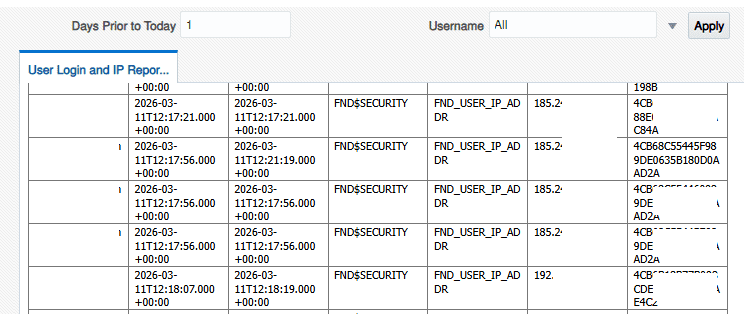
You can design the layout using any BI Publisher template format (RTF, Excel, HTML, etc.) to suit your needs.
Going Further: API-Based Extraction
If you need to retain login audit data beyond Oracle’s default retention period, or if you want to feed this data into your own audit data warehouse, you can use the BI Publisher REST API to schedule and extract this report programmatically. This allows you to automate the collection of login and IP data on a recurring basis and store it externally for long-term analysis and compliance.
This report is a foundational layer in any audit readiness strategy. When an auditor asks for evidence of access controls and monitoring, this is the artifact you hand over. When a security incident occurs and you need to trace activity back to a specific user and IP.